
Resonance of Fate Enhanced Remaster Keybinds: Complete PC Control Guide
Mastering the unique, tactical combat system of Resonance of Fate Enhanced Remaster requires absolute comfort with your input devices.
Mastering the unique, tactical combat system of Resonance of Fate Enhanced Remaster requires absolute comfort with your input devices. Because the game blends real-time movement with turn-based strategy, action economy, and complex positioning, using a suboptimal key layout can make battles frustrating.
This comprehensive support and configuration guide covers standard PC keybindings, tips for adjusting your controls to match the game's fast-paced tactical flow, and troubleshooting methods for mapping third-party controllers or adjusting layouts.
Understanding the Combat Flow and Input Demands
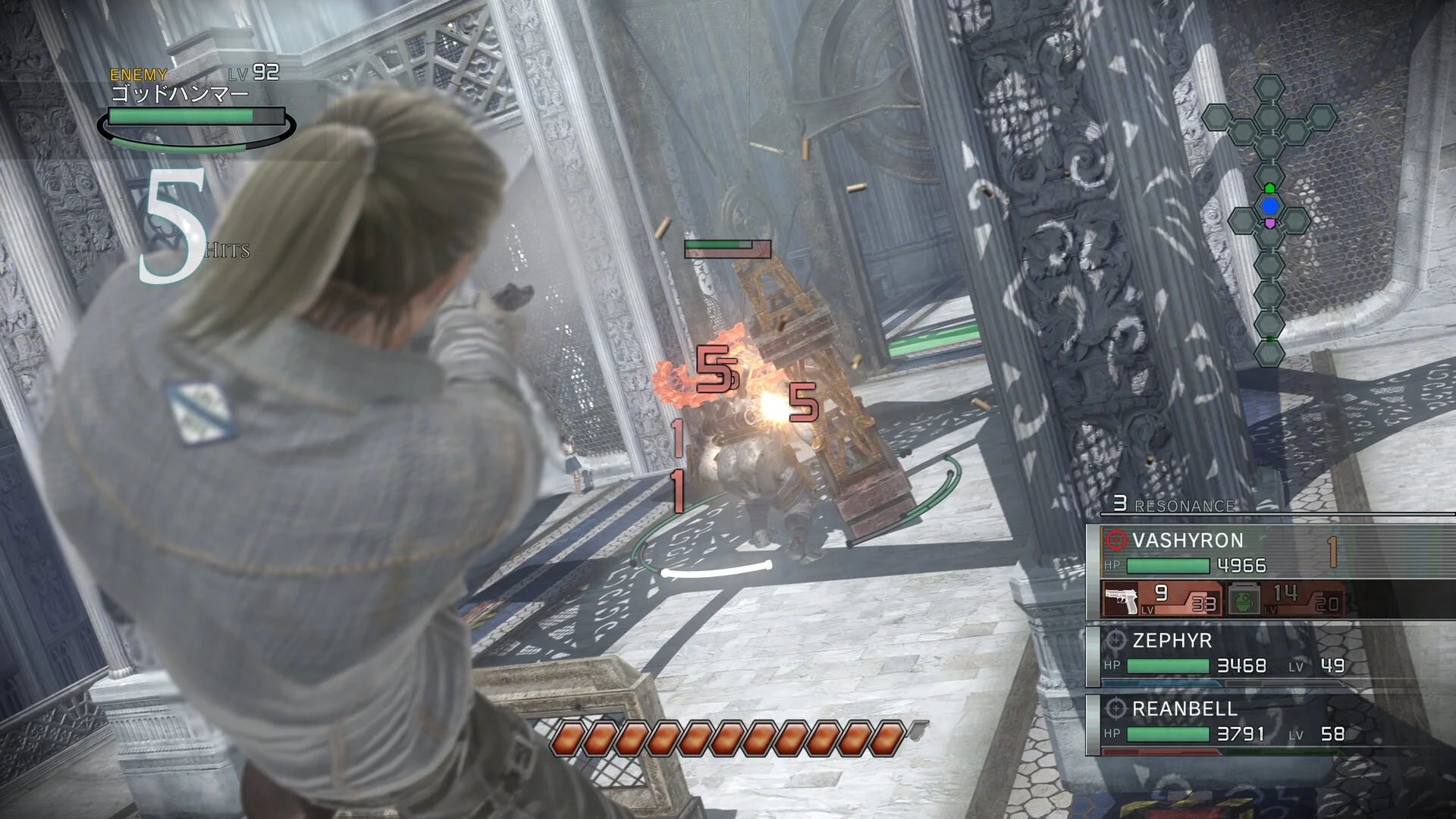
Before customizing your Resonance of Fate Enhanced Remaster keybinds, it helps to understand how inputs translate into actions on the battlefield. The combat system relies heavily on a few core mechanics:
- Movement and Action Bars: You move freely until your blue action bar depletes. Standing still freezes time for everyone, but moving or taking actions makes time flow, allowing enemies to react.
- Normal Attacks vs. Charge Attacks: Standing still and pressing the attack button initiates a charge animation. You must press it again to fire before your action bar empties.
- Hero Attacks: Consuming a bezel shard lets you run along a targeted path. Inputs must be crisp so you can transition smoothly into jumping, changing directions, or unleashing a volley.
- Tri-Attacks and Resonance Points: Executing a Tri-Attack requires precise triangular positioning and swift button confirmation to cycle your characters through continuous movement and firing phases.
Because these mechanics demand fluid transitions between standing still, running, jumping, and firing, having the right keys assigned to easily accessible fingers is essential.
Default PC Keybind Layout
When you first launch the Enhanced Remaster on PC, the game assigns default mappings for keyboard and mouse configurations. While defaults vary depending on updates and launcher patches, players typically encounter the following functional setups:
- Movement Keys: Standard
W, A, S, Dor directional keys to navigate the battlefield environment and adjust your positioning relative to enemy cover and shields. - Action / Confirm: Assigned to primary face keys (such as
SpacebarorEnter) to execute standard actions, confirm paths, or trigger attacks. - Attack Input: Generally mapped to a primary mouse click or an easily reachable keyboard key, allowing you to trigger a charged attack or fire mid-run during a Hero Attack.
- Jump / Elevation Change: Usually bound to a secondary key or modifier (such as
Shiftor a designated shoulder/mouse button if using a profile) to lift characters into the air for airborne attacks and Smackdowns. - Hero Attack / Special Menu: Dedicated inputs to toggle specialized movement modes, line up paths between teammates for Resonance Points, or initiate a Tri-Attack setup.
Note: Because PC patches and remaster versions occasionally introduce updated configuration menus, always check the in-game options menu under "Controls" or "Key Mapping" upon your first startup to view the exact bindings currently active on your version.
Recommended Keybinding Adjustments for Better Play
If you find the default layout awkward—particularly when trying to manage movement, camera angles, and attack charges simultaneously—consider these configuration adjustments:
- Keep Attack and Jump Close: Since airborne combos and Smackdowns require you to jump and shoot at a higher elevation than the enemy, map your jump and attack inputs to keys or mouse buttons that can be pressed in rapid succession without hand cramping.
- Mouse Sensitivity and Camera Control: The remaster features enhanced visual clarity, but tracking fast-moving targets or aligning paths during Hero Attacks can be disorienting with high mouse sensitivity. Lower your mouse sensitivity slightly in the settings to achieve more precise targeting precision when lining up enemy shields or core body targets.
- Consider a Gamepad: Resonance of Fate was originally designed with console controllers in mind. Many players find that the radial menus, directional movement lines, and smooth camera rotations translate much more naturally to an analog stick layout (such as an Xbox or PlayStation controller plugged into your PC via USB or Bluetooth) than a standard keyboard and mouse setup.
How to Verify and Customize Your Controls
If you want to check for new configuration options or ensure your custom layout saves properly, follow these verification steps:
- Access the In-Game Options: Pause the game during a safe moment (or access the main menu before loading a save) and navigate to Settings > Controls.
- Test in the Arena: Before diving into high-difficulty story chapters or complex boss encounters, test your new keybinds in a lower-stakes environment or training area. Pay attention to how quickly you can transition from a normal movement phase into a Hero Attack without fumbling for modifier keys.
- Check Third-Party Software Conflicts: If your keybinds fail to register or if certain keys seem unresponsive, ensure that background overlay software (such as Discord, GeForce Experience, or Steam Input configurations) isn't overriding your game inputs. You can toggle Steam Input on or off via the game's properties menu in your Steam library to see if it improves controller recognition or keyboard responsiveness.
By optimizing your Resonance of Fate Enhanced Remaster keybinds, you will minimize input friction and focus entirely on mastering scratch damage, converting direct hits, and executing flawless Tri-Attacks.
Next guides4
 Release
Resonance of Fate Enhanced Remaster Release Date: What We Know and What to Expect
PlatformsResonance of Fate Enhanced Remaster on PS5: What to Expect from tri-Ace's Cult Classic
PlatformsPlaying Resonance of Fate on the Steam Deck: Performance, Setup, and Compatibility
Platforms